



Importing PowerPoint files into earlier versions of Adobe Captivate was not possible. But Adobe Captivate 13 has completely changed the game. Now, importing PowerPoint is easy, useful, and effective.
This guide will show you everything you need to know about importing PowerPoint files into Adobe Captivate 13. Whether you’re new to eLearning or have been doing this for years, you’ll learn how to turn PowerPoint presentations into engaging online courses.
Why This Matters
Most people create training content in PowerPoint first. It’s familiar and easy to use. But turning those slides into interactive eLearning courses used to mean starting over from scratch. Not anymore.
Adobe Captivate 13 now takes your PowerPoint files and converts them into editable eLearning content. This means you can work faster, collaborate better with your team, and reuse content you’ve already created.
How to Import PowerPoint Files
Importing is simple. Here’s what you do:
Step 1: Open Adobe Captivate 13 and click “Import PowerPoint” on the left side of the welcome screen.
Step 2: Find your PowerPoint file on your computer.
Step 3: Select your file and click “Import.”
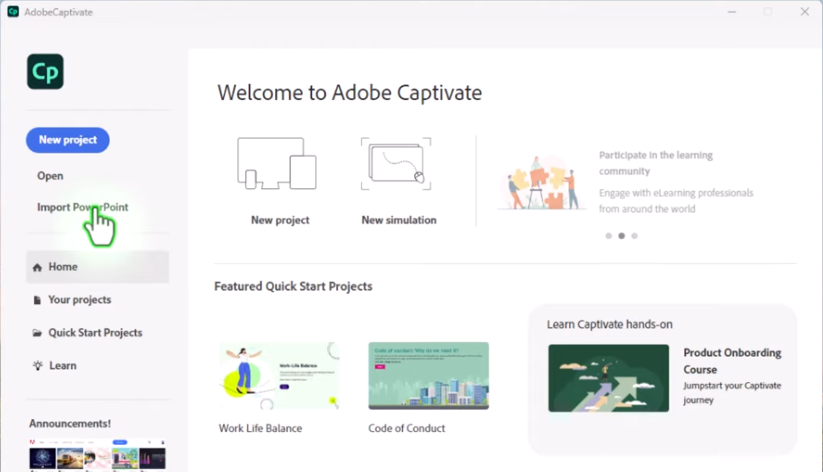
Important Things to Know:
- Only PPTX files work (the newer PowerPoint format). If you have an old PPT file, save it as PPTX first.
- Your slides will keep their original size and shape.
- Imported projects won’t automatically adjust to different screen sizes like phones or tablets. They’ll only work in desktop view.
What Comes Through When You Import
Here’s the good news: Adobe Captivate 13 is smart about what it imports. Most things stay editable instead of turning into flat images.
Things You Can Still Edit:
- Text: All text boxes stay as text. You can change the words, fonts, colors, and sizes.
- Images: Pictures import cleanly and you can resize, crop, or adjust them.
- Shapes: Arrows, stars, circles, and other shapes stay editable.
Because these elements stay editable, you get special tools to work with them. The Visual Properties Inspector has a “Transform” section where you can:
- Resize things
- Move them around
- Flip or rotate them
- Adjust their angles
Example: Want to tilt a title at a fun angle? Just type “5 degrees” in the rotation box and it tilts.
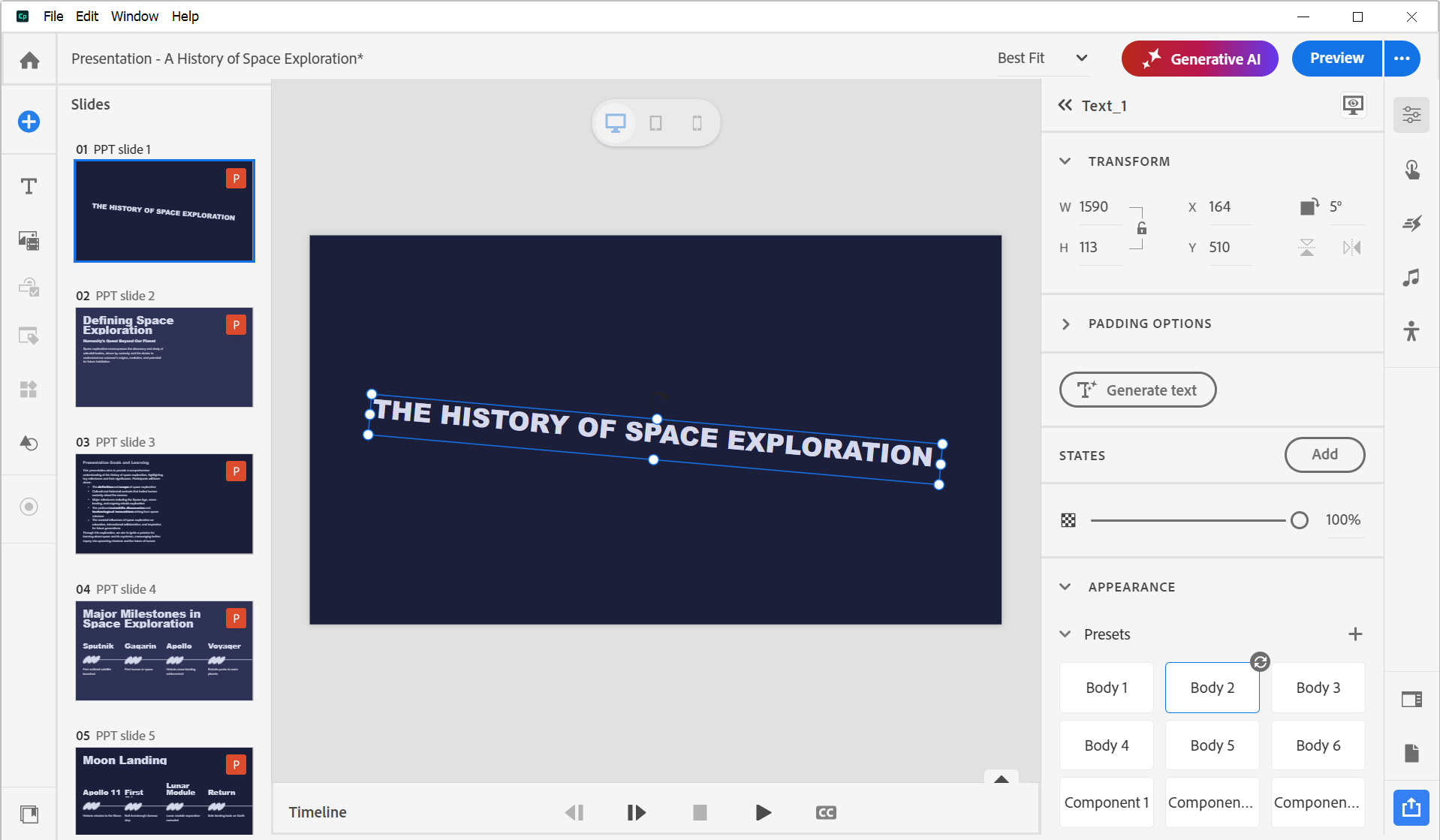
Working with Text
Text is super flexible after importing. You can:
- Change the words
- Pick new fonts
- Adjust colors
- Add effects like shadows or outlines
- Change text alignment
Example: If your slide says “History of Space Exploration” but you want it to just say “Space Exploration,” simply delete the extra words. No need to recreate anything.
You can also create text styles and save them as presets. This keeps your entire course looking consistent.
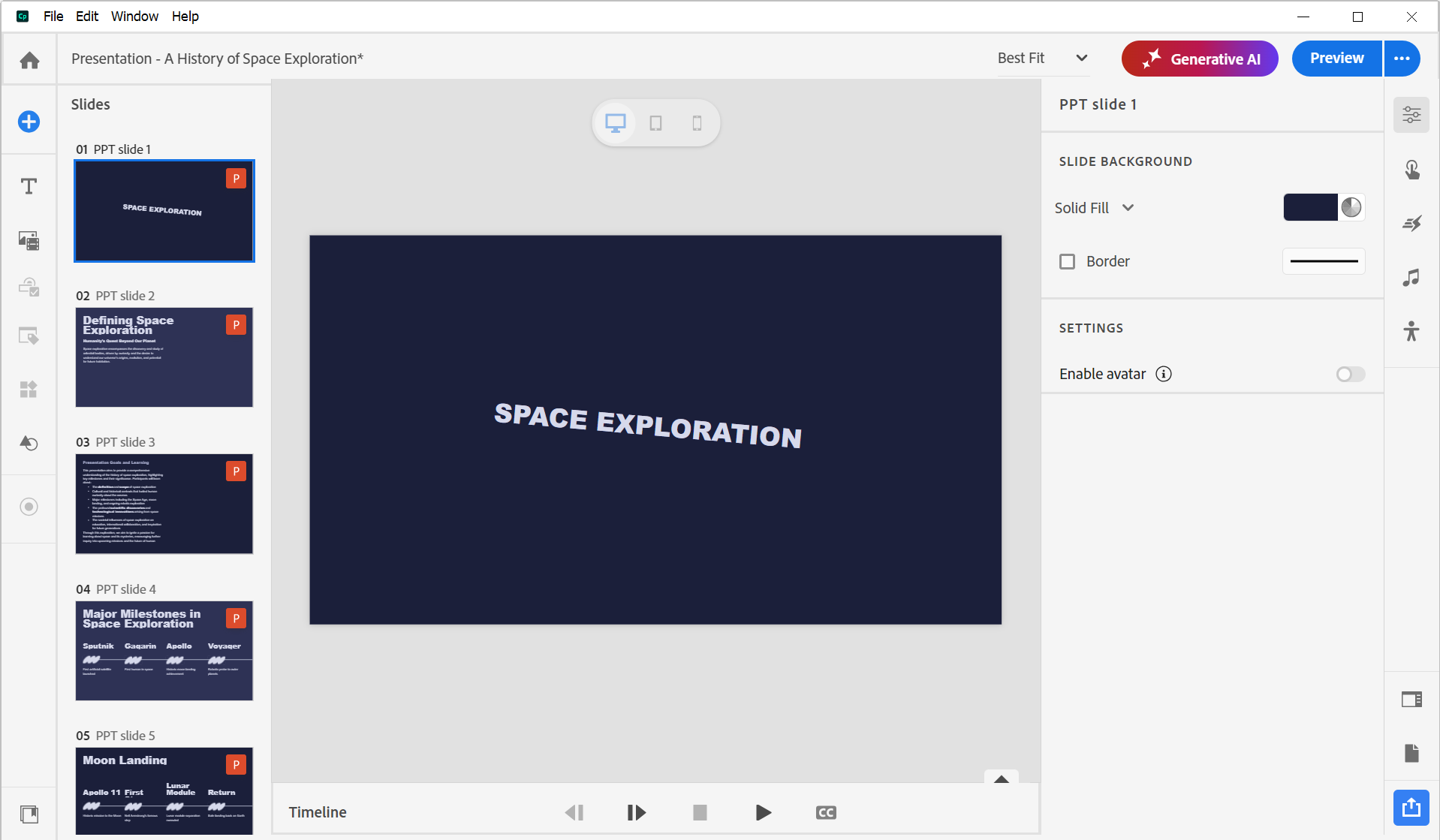
Turn Speaker Notes into Narration
This is one of the coolest features. If your PowerPoint slides have notes (those notes speakers read during presentations), Captivate can turn them into audio narration automatically using AI voices.
Here’s How:
1. Click the “Generative AI” button at the top
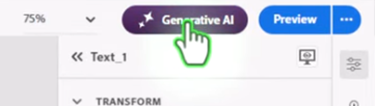
2. Select “Generate Avatar”
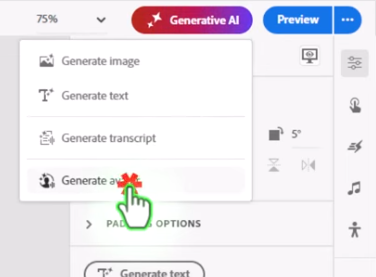
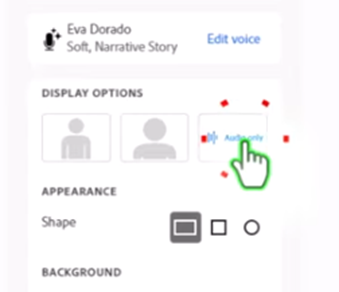
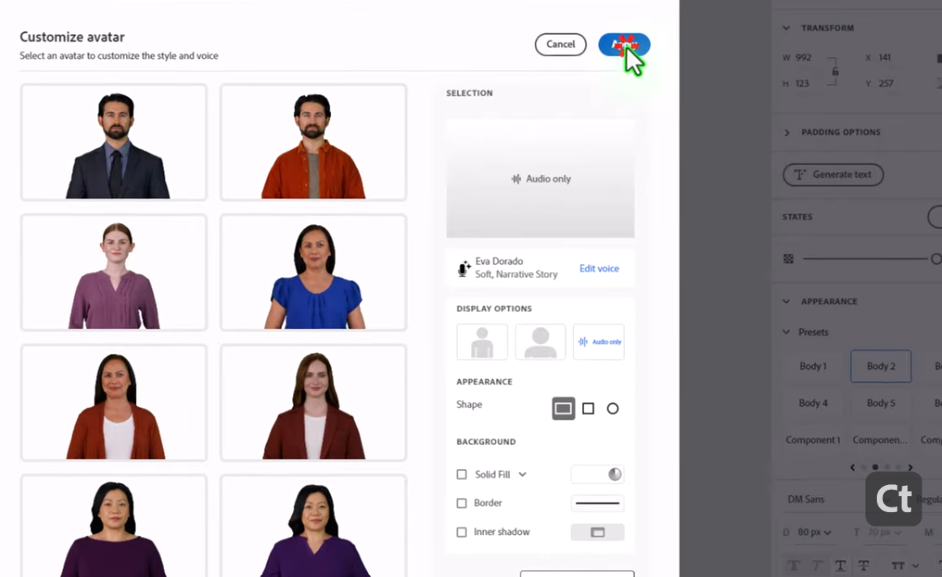
3. Choose if you want just audio or an on-screen avatar
4. Click “Apply”
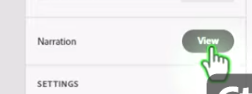
5. Go to the “Narration” section
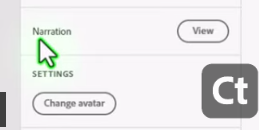
6. Click “View” to see your notes
7. Click “Generate” to create the audio
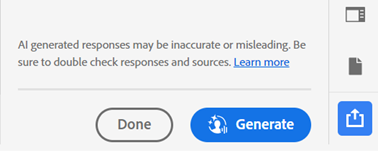
The best part? You don’t have to wait. Click generate and move on to other work. The audio will be ready when you come back.
Editing Images
Images import with their quality intact. Once they’re in Captivate, you can:
- Resize them
- Crop them differently
- Apply filters
- Adjust brightness and contrast
To Edit an Image:
Double-click the image or click the pencil “Edit Image” icon. You’ll see tools to change the crop, zoom in on different parts, or adjust how it looks.
When you’re done, press Enter and the changes save. Then position the image wherever you want on your slide.
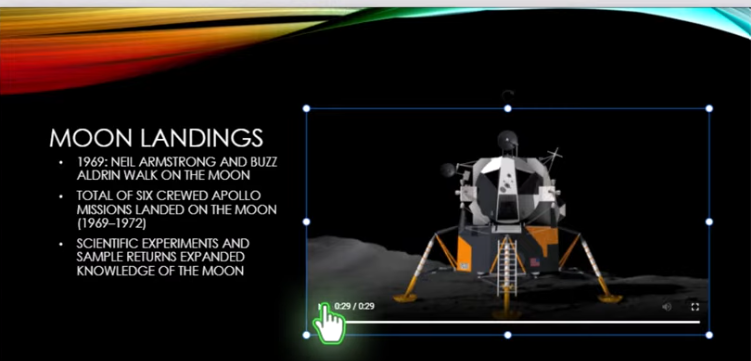
Videos Stay Interactive
If your PowerPoint has videos, they import as interactive videos. This means learners can:
- Play and pause
- Skip forward or backward
- Adjust the volume
- Make the video full screen
- See closed captions (if you add them)
Videos don’t become static or limited. They stay fully functional and accessible.
Shapes Work Great
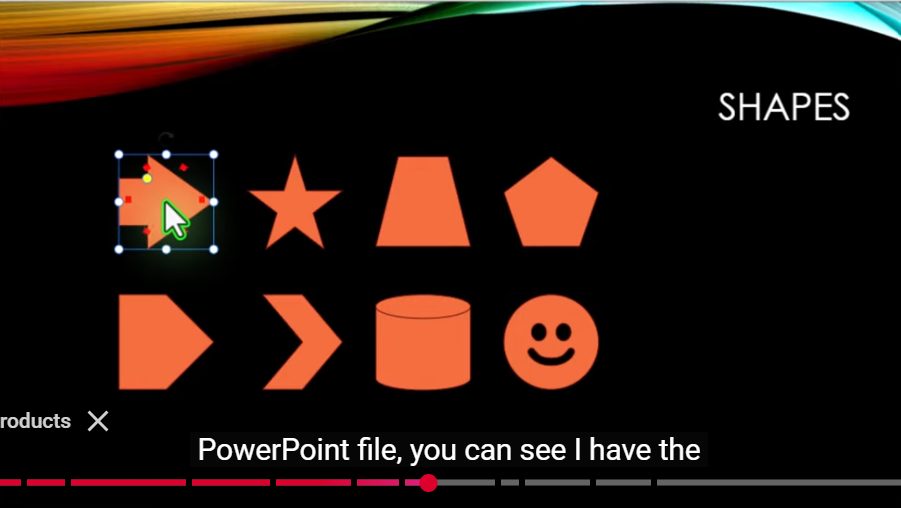
Shapes import beautifully and stay editable. When you click on an imported shape, you’ll see yellow handles that let you adjust it.
What You Can Do:
- Make arrows point different directions
- Make stars skinnier or fatter
- Tilt polygons
- Adjust chevrons
- Even change 3D cylinder angles
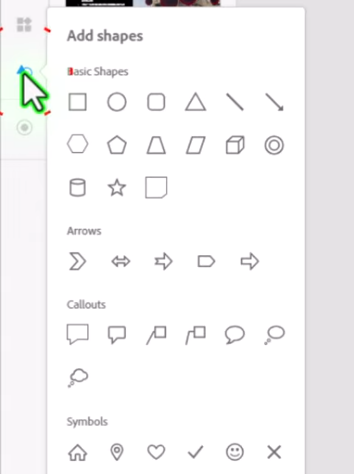
If you need more shapes, click the “Add Shape” icon on the left toolbar. You’ll find basic shapes, arrows, callouts, and symbols to add to any project.
Some Things Become Images
Not everything stays editable. These items convert to static images:
- SmartArt charts
- 3D models
- Equations and formulas
- Tables
The Good News: They still import—they don’t disappear. You just can’t edit them the same way.
The Workaround: For SmartArt, you can recreate it using Captivate’s tools:
- Move the imported image to the side
- Add text boxes for the words
- Import SVG graphics for the visual elements
- Position everything to match
- Delete the original static image
Yes, it takes extra time. But you’ll have full control to change things later.
Animations Transfer Too
If your PowerPoint slides have animations, they come into Captivate as Captivate animations. You can see them on the timeline and edit them.
You Can:
- View the imported animation
- Change it to something different
- Add new animations
- Adjust timing and effects
You’re not stuck with what PowerPoint gave you. Use it as a starting point and make it better.
Building Custom Interactive Content
Sometimes you’ll want to replace imported static elements with something more interactive.
Here’s the Process:
- Keep the imported image as a reference
- Add text captions to replace text
- Import SVG images for graphics
- Customize colors, sizes, and positions
- Add animations to make it dynamic
- Delete the original static image
Example: For a slide about space exploration with static SmartArt, you could:
- Create text boxes for each point
- Import SVG rockets and planets
- Change colors to match your course
- Rotate elements for visual interest
- Add expand animations so items appear one by one
This creates engaging, interactive content that learners can’t get from static images.
Working with Your Team
PowerPoint import changes how teams work together.
The New Workflow:
- Subject matter experts create content in PowerPoint (what they know)
- They add speaker notes for narration
- You import it into Captivate
- You enhance and customize it
- Everyone works in their area of strength
Even if you don’t use the imported content exactly as-is, it gives you a head start. The images, text, videos, and structure are all there. You just customize, improve, and polish.
Before You Import:
- Look at your PowerPoint file first
- Identify SmartArt, 3D models, or complex tables
- Plan how you’ll recreate these elements
- Remember imported content only works in desktop view
Tips for Success
- Keep It Simple: Start with straightforward PowerPoint files as you learn. Add complexity once you’re comfortable.
- Plan Ahead: Know what will need extra work after importing (like SmartArt or tables).
- Use What Works: If text and images import perfectly, great! Focus your time on enhancing those problem areas.
- Test Everything: After importing, click through slides to see what needs attention.
- Save Time with Presets: Create text and style presets early. Apply them throughout your course for consistency.
Conclusion
Adobe Captivate 13 has turned PowerPoint import from a frustrating feature into a powerful tool. You can now take PowerPoint files from your team, import them quickly, and turn them into professional eLearning courses.
The key is understanding what imports well (text, images, shapes, videos) and what needs extra work (SmartArt, 3D models, tables). With this knowledge, you can plan your workflow and create great courses faster than ever.
Start simple, experiment with the features, and find what works best for your projects. The connection between PowerPoint and Captivate is now smooth and efficient, making your job easier and your courses better.
